> ## Documentation Index
> Fetch the complete documentation index at: https://docs.blink.store/llms.txt
> Use this file to discover all available pages before exploring further.
# Products sorting
Blink lets you control how products appear in your store by setting a custom order.
## Reorder products
Go to the Products page and click the Reorder button to open the menu. From the left panel, click or add products to move them into the Featured list on the right. You can then drag and arrange them in any order you want.
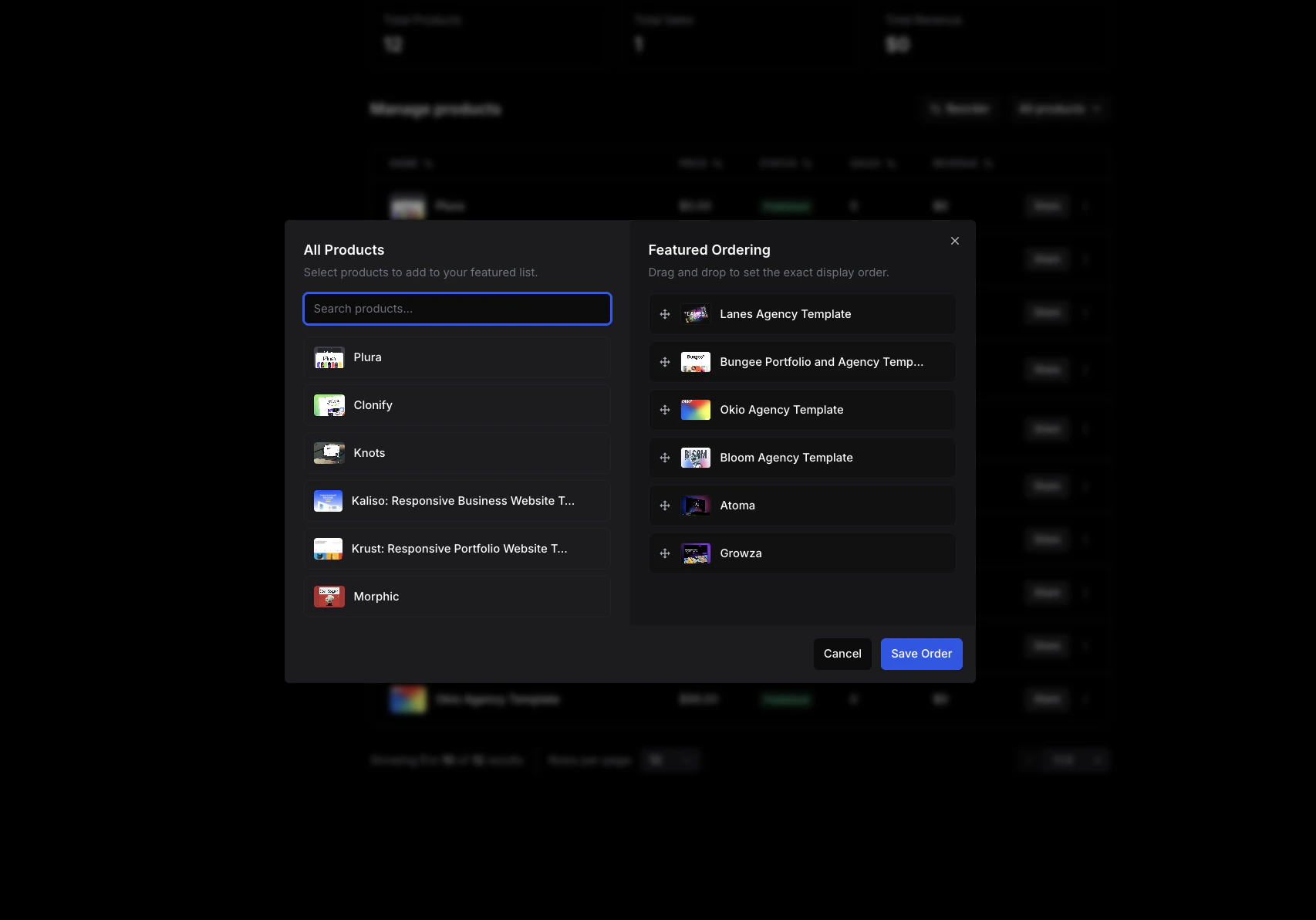 Once set, your store will include a Featured filter showing products in your custom order.
You can set your store’s default sorting option from the Design tab.
Once set, your store will include a Featured filter showing products in your custom order.
You can set your store’s default sorting option from the Design tab.